
Based on my CollabDays Belgium 2025 session
“It’s ironic that Bing and its competitors can instantly find anything in the world, yet finding something in the workplace remains a challenge.”
— Bill Gates, 2005
If you’ve ever helped a team migrate from a file server to SharePoint, you’ve probably heard the same worry:
“Will I still be able to find my documents afterwards?”
That fear is universal. People know their old folder structures by heart — even if they were 15 levels deep — and they worry that all that familiarity will vanish once everything moves to the cloud.
But here’s the truth: when you use SharePoint search properly — with smart metadata, clear structure, and a bit of tuning — people can find their information faster than ever. The key is to show them, not just tell them.
At CollabDays Belgium 2025, I gave a session called “Create the best search for your SharePoint.” This blog expands on that talk and shows how to move from “searching” to truly finding — by combining the power of Microsoft Search, PnP Modern Search, and Copilot Search.
Why Effective Search Still Matters
In most organizations, search is taken for granted. It “just works.” But if people can’t find what they need, productivity drops fast.
Microsoft Search handles a very high volume of queries across SharePoint, OneDrive, Outlook, and Teams. Yet, even with that scale, the challenge remains: context.
People expect Google-like results, but enterprise search is personal. The results you see are not the same as what your colleague sees — because permissions, relationships, and recent activity all influence ranking. Microsoft calls this dynamic ranking.
Good search is not about showing everything. It’s about showing the right thing, in the right context.
For admins and key users, that means three goals:
- Make sure the index contains what users actually need.
- Ensure metadata and permissions are well-structured.
- Provide a search experience that feels natural — with filters, shortcuts, and direct answers.
That’s what we’ll explore in this blog.

The Building Blocks of Microsoft Search
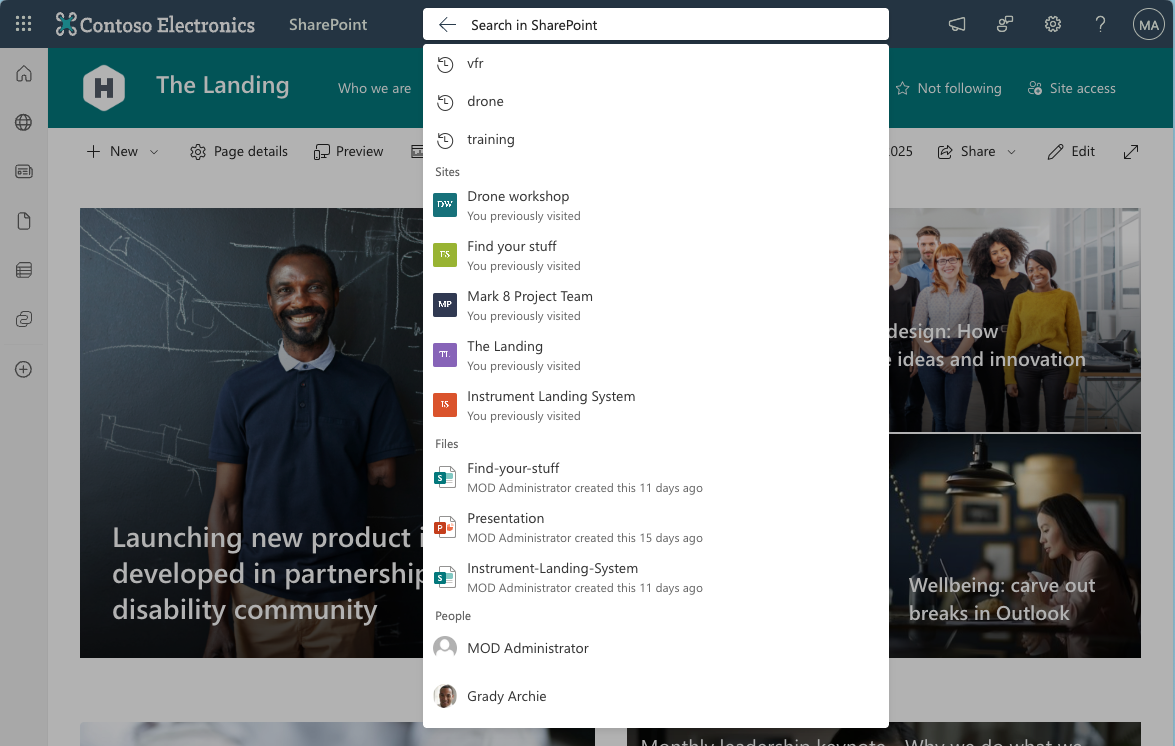
When you click the search bar in SharePoint, you might notice it already suggests people, files, and sites before you type a word. That’s Microsoft Search working behind the scenes — surfacing content you’re likely to need based on your work relationships and activity.

It’s convenient, consistent across Microsoft 365, and — best of all — it requires zero configuration. You get useful results immediately.
Still, there’s a lot more under the hood that most organizations never touch.
1. Context Matters
Search in SharePoint always depends on where you are:
- “Search in SharePoint” (top-level) looks across all sites.
- Search inside a team site or communication site returns results within that site and below.
- Search inside a library or list only looks locally.
This hierarchy is helpful — but also confusing if users don’t realize why results differ between pages. A simple training tip: always check what the search box says before typing.
2. Security Trimming
Microsoft Search only shows what you already have access to. It never changes permissions. That’s a huge advantage when rolling out Copilot later — both use the same security model.
So if users ask, “Can my colleague see this?”, the answer is simple: if they don’t have access in SharePoint, they won’t see it in search either.
3. Connected Data Sources

Beyond Microsoft 365, you can connect external data — like SQL databases, file servers, or public websites — using Microsoft Search connectors. That’s powerful for organizations migrating legacy archives: users can search across SharePoint and older systems from one place.
The challenge remains consistent with permissions. Make sure external connectors respect the same access rules as your M365 data.
Using KQL for Smarter Search
Behind every Microsoft Search query lies KQL (Keyword Query Language) — a simple way to refine results directly from the search bar. You can combine keywords with filters to pinpoint exactly what you need.
For example:
marketing filetype:pptx→ finds PowerPoint files about marketing"travel policy" author:"Pieter Kops"→ finds documents by a specific author
Even basic KQL use can turn a vague search into a precise one — and it works everywhere in Microsoft 365.
Turn Search into Answers: Acronyms and Bookmarks
One of the simplest — yet most overlooked — ways to make Microsoft Search more useful is by using Acronyms and Bookmarks.

Every organization has its own internal language. Teams talk about “PIM,” “DMS,” “WBS,” or “CS Portal” as if everyone knows what they mean. But for new employees, it’s a mystery. Acronyms and bookmarks turn that insider knowledge into structured, searchable help.
When someone types VFR into the search bar, instead of a random list of documents, they can see a short definition:

Explained in a short paragraph, with a link to the reference document or intranet page.
That’s an acronym card — a small, elegant way to make internal jargon accessible.
Bookmarks work the same way, but instead of defining terms, they promote key content.
For example:
Searching for training might display a bookmark called “Flight Training Portal” with a short description and a link to the correct site.

You can even set start and end dates — ideal for promoting temporary campaigns, onboarding materials, or Copilot walk-in sessions.
Together, acronyms and bookmarks create a guided search experience. Instead of forcing people to guess the right keywords, you meet them halfway with curated results.
Learn from Your Users: Search Analytics
Improving search isn’t only about configuration — it’s about understanding how people actually use it.
Under Search & Intelligence → Insights, admins can view:
- What users search for most often
- Which queries return no results
- How many users clicked the first result
- And whether feedback was submitted
These insights are gold.
Note: Roles that can access Search Analytics include Search Administrator, Search Editor, Global Reader, and Global Admin.
If people repeatedly search for “travel request” and find nothing, that’s a signal. You can:
- Add a bookmark that links directly to your travel policy.
- Or enrich metadata in the document library to make it more discoverable.
You don’t need global admin rights to view these reports — just assign the Search Administrator role. It gives visibility into search analytics without exposing sensitive data.
A good practice is to check these dashboards every quarter. Treat search like a living system that evolves with your organization.
When “Good Enough” Isn’t Enough: PnP Modern Search

The out-of-the-box search is fine for most people — but when you want to customize the experience or focus on a specific business area, that’s where PnP Modern Search comes in.
You install it once in your App Catalog, approve the API permissions, and then you can add it to any modern page.
Here’s what makes it shine:
1. Custom Search Pages
You can create dedicated experiences like Project Finder, Knowledge Hub, or Training Radar.
Don’t call it “Search.” Give it a name that fits your users’ needs.
2. Display Templates
Define exactly how each type of result looks — whether it’s a Word file, project record, or training course. You can show titles, owners, dates, or even metadata like “Location” or “Status.”
3. Connected Filters
Add refiners like “Author,” “Region,” or “Project Phase.” The filters update dynamically based on the current results — just like filtering products on an e-commerce site.
Imagine someone looking for drone training sessions. Instead of browsing folders, they can:
- Search for “training.”
- Filter by Location: Antwerp and Level: Beginner.
- Instantly get the right three results.

That’s PnP Modern Search in action — fast, focused, and intuitive.
Crawled and Managed Properties — The Hidden Power Behind Search
Every time you create a new column in a SharePoint list or library, it becomes a crawled property once it’s indexed.
Crawled properties represent the raw metadata — they exist, but you can’t yet filter or query them.
To make them usable in search, you map them to managed properties — refinable, queryable, sortable fields.
For example:
| Column name | Crawled property | Managed property |
| ProjectStatus | ows_ProjectStatus | RefinableString01 |
Once mapped, you can use it in filters, KQL queries, and display templates.
This mapping step is what enables advanced PnP Modern Search configurations — such as filtering by “Project Phase” or showing only “Active Projects.”
Tip: Crawled properties update automatically during indexing, but managed property mappings can take several hours to become active. You can speed things up by adding or modifying data in affected columns.
The Future: From “Recall” to “Understand”
There’s a lot of talk about Copilot replacing search — but that’s not really what’s happening.
Search and Copilot serve two different but complementary purposes.
Traditional search is about recall:
“Show me documents that contain this word.”
Copilot adds understanding:
“Explain how to book my working hours.”
The difference is subtle but transformative.
Search gives you documents; Copilot gives you answers.
When you ask Copilot a question, it uses large language models to read across multiple sources — policies, guides, chats, emails — and synthesize a summary. But when you use Copilot Search, you still get the underlying documents.
Both approaches are essential. Sometimes you want to read the full context; other times you just need the answer.
In Microsoft’s own terms:
Search = Recall
Copilot = Understand
These two modes will coexist. Search remains your trusted way to explore and verify data. Copilot is your shortcut to comprehension.
Natural Language Search Arrives
We’re also entering a new phase where you don’t need to master KQL (Keyword Query Language) anymore.
You can type:
“Show me all project status reports from Q3.”
“Find onboarding documents created by HR last month.”
Copilot Search understands that intent and constructs the necessary queries behind the scenes, so users don’t need to know KQL syntax.

It’s the same engine — just smarter input.
In practice, this means non-technical users can finally perform powerful searches without knowing syntax. It lowers the barrier dramatically while keeping the admin and compliance framework intact.
Practical Advice for Admins and Power Users
If you’re responsible for SharePoint or Microsoft 365 governance, here are a few takeaways from the session:
Train users to read the search context
Teach them the difference between “Search in this site” and “Search across SharePoint.” It saves countless support tickets.
Use Acronyms and Bookmarks generously
They’re easy wins that make search feel smarter and reduce confusion for new hires.
Check Search Analytics quarterly
Look for trends and dead ends. Add bookmarks or metadata where people repeatedly fail to find content.
Experiment with PnP Modern Search
It’s open-source, fast to deploy, and great for departmental solutions like project finders, training portals, or asset libraries.
Embrace Copilot, don’t fear it
Copilot Search doesn’t replace traditional search — it builds on it. You’ll need both recall and understanding in your digital workplace.
Why This Still Matters in 2025
Enterprise content is growing faster than ever, but users’ attention isn’t. Every extra click between question and answer costs time — and momentum. SharePoint Search, when tuned properly, reduces that friction. It connects knowledge, context, and people.
And when you extend it with PnP Modern Search and Copilot, it becomes the backbone of a knowledge-driven organization.
So before you invest in yet another search app or “AI assistant,” take a closer look at what’s already built into Microsoft 365. You might discover that the most powerful search engine your organization ever needed was there all along.
Resources
| Search & Intelligence Admin Center | https://learn.microsoft.com/microsoftsearch/manage-search |
| Copilot Search Settings | https://learn.microsoft.com/copilot/microsoft-365/microsoft-365-copilot-search-admin-experience |
| PnP Modern Search | https://microsoft-search.github.io/pnp-modern-search/ |
| Microsoft 365 Search Portal | https://learn.microsoft.com/microsoftsearch/ |
| KQL Cheat Sheet | https://learn.microsoft.com/sharepoint/dev/general-development/keyword-query-language-kql-syntax-reference |
Wees de eerste om te reageren